
Getting started
Computational chemistry is run using specific codes and programs, we will be using Gaussview for the graphical interface and Gaussian to run the jobs (do the actual solving of the Schrodinger equation)
You will need to carry out calculations for your assignment.
The easiest way to learn how to do this is in a "lab" setting, and via access to the computers in LB109 or in KK216, we have 3 1hr slots available to us (ie where I can be present).
- A KK216 Weds 12-1
- B KK216 Weds 1-2
- C KK216 Thurs 12-1
There is also the option to use the computers in LB109 at any time but without my help.
If you are unable
Access the high performance computer (HPC)
Computational chemistry often requires significant computational power, while the jobs you will run are not in this class, it is important for you to become familar with a high performance computing environment. The hpc environment is not GUI (graphical user interface) oriented, rather you use a UNIX environment giving commends in terms of words in a terminal application.
- If you are on-site, login to a university or private computer
- The computer you are sitting at is your LOCAL computer
- Important Unix does not like spaces in file or folder names, NEVER use spaces. if you want a "gap" use an underscore. So rather than having a folder called "my lab" use "my_lab".
- Important Unix does not like special characters, do not use anything other than alpha-numberic characters (and underscore) in names.
- In your local computer create a new folder called "306_comp_chem_lab" where you will save all your files.
- To undertake this lab you will need a terminal application. If you are in the computer room LB109 MobaXterm will already be installed and you can and go ahead now to the next point
- Linux users: you are very lucky, simply start up your terminal application and open a terminal window!
- Windows users: you will need to install some software that will emulate a unix terminal, the software is called MobaXterm
- navigate in your favourite browser to "https://mobaxterm.mobatek.net
- click on get MobaXterm now
- choose the free Home edition
- choose the installer version
- save into the default location most likely to be C:\Users\%UserName%\Downloads
- then navigate to your downloads directory
- "unzip" into the current folder
- you will get MobXterm_installer_20.2.msi which is the installer
- double click to run the installer
- if you have a security warning, click run to allow the installer to work
- you will get the setup wizzard
- accept the license agreement
- accept the default placement of the file most likely to be
C:\Program Files (x86)\Mobatek\MobaXterm\ - click install
- accept the app making changes to your device
- click on finish
- start the MobaXterm application up
- accept MobaXtem operating on private networks
- now you are ready to login to raapoi!
- Mac users: you are unlucky, Apple has nurfed openGL/X11 and the mac terminal program will not work, so we need to do some fiddling, this includes installing the XCode tools and an X11 application called XQuartz
- if you don't have it already navigate to the App store and download and install XCode (Developer tools), note this is a big application and will take some time, do this well before you need to start the lab
- if you already have the latest version of XQuartz you will need to roll back to an earlier release, as we need XQuartz 2.7.8 (ie roll back from 2.7.11)
- download XQuartz from https://dl.bintray.com/xquartz/downloads/XQuartz-2.7.8.dmg
- double click on the installer and follow the instructions
- once XQuartz is installed shutdown and restart your computer
- start up your terminal application
- type in the terminal window "sudo defaults write org.macosforge.xquartz.X11 enable_iglx -bool true" and press return
- you will then need to reboot your computer (again)
- don't be tempted to miss one of the reboots, they are both necessary
- start the XQuartz app (you will find it in Applications/utilities) and open a XQuartz termninal window
- now you are ready to login to raapoi!
- if you are in LB109
- start the MobaXterm application
- accept MobaXtem operating on private networks
- now you are ready to login to raapoi!
- everyone should now have an application open which they can use to connect to raapoi, in the following "username""=the login assigned to you as part of this lab
- Linux and Mac users
- type ssh -XY username@raapoi.vuw.ac.nz
- enter your password when requested
- Windows users:
- go to Sessions->New Sessions
- select "SSH" as the session type
- type in the remote host address: raapoi.vuw.ac.nz
- type in your username: username
- check that you have port 22
- click ok
- Linux and Mac users
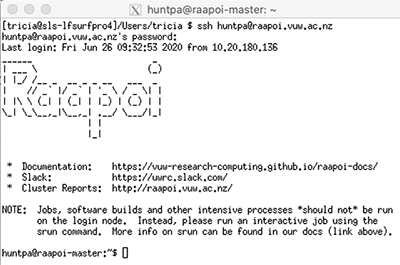
all users should see something like this
- Launch gaussview by typing the following (press return at the end of each line):
module load Gaussview/5.0
srun --pty --cpus-per-task=2 --mem=6GB --partition=quicktest --x11 gview
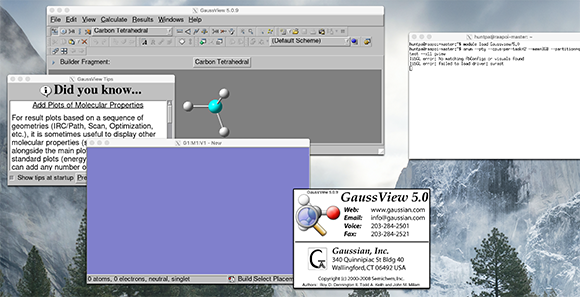
- You should see a number of windows appear,
- If you have got this far, well done! We are ready to now start using Gaussview which is a graphical user interface to the Gaussian suite of programs.
- all users should see something like the image below (I am using a mac)
- the gaussview 5.0 window should disappear quite quickly
- you can get rid of the "did you know" hints window
- the grey window with buttons and a molecule, has all the gaussview controls
- the blue/purple window has nothing in it, yet!. This is where you will be building your molecule
- When you are ready move onto the next step