You can run the small 3-21G calculations on a laptop or desktop computer easily However, larger calculations will take longer, and you should run them on the high performance computer. Submission is via a web-portal. First create the job as normal and save the input file, however do NOT submit the job to run.
important Students have run into problems in the past because they have not read and followed these instructions accurately, take time to do each step in the order indicated!
put your name or initials in the filename otherwise it is possible the servers will have 28 files with the same name and your job will not work correctly. Give your files descriptive names because after running a few jobs you will forget which one is which. The server will assign your file a unique name but this is not very descriptive, rename the file when you get it back from the server.
Do not use special characters or spaces in file names. In unix spaces and special characters have a special meaning and you could run into problems, I use "underscore" instead of spaces.
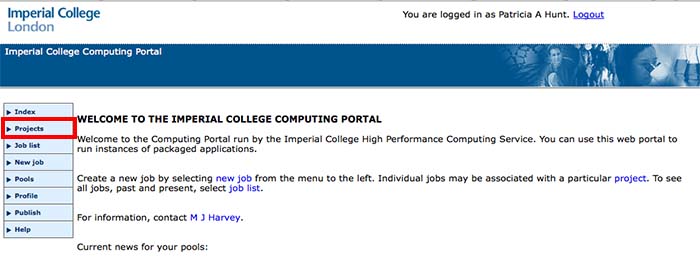
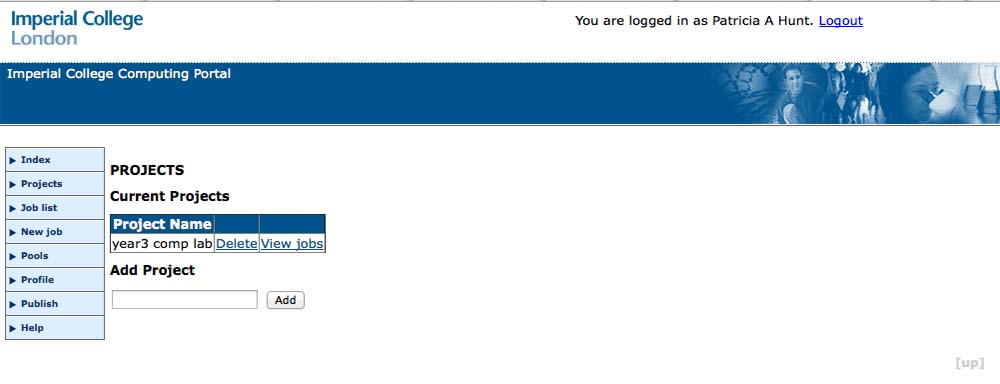
create a project for your jobs by clicking on the projects tab and creating a new project (only do this once!):
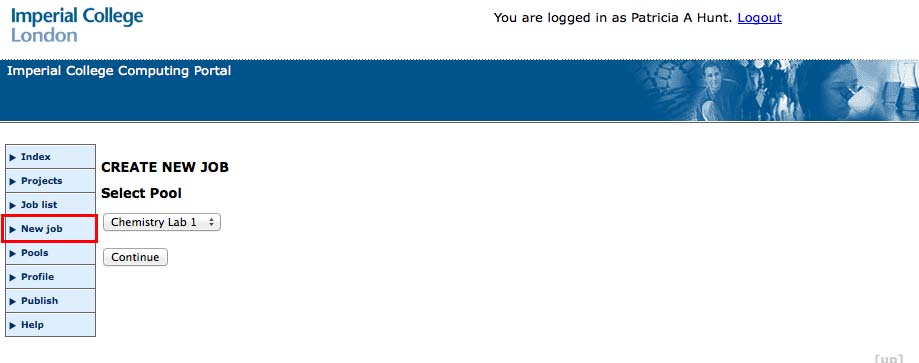
create a new job, by clicking on the "New Job" tab, leave "Chemistry Lab 1" button as is and click continue:
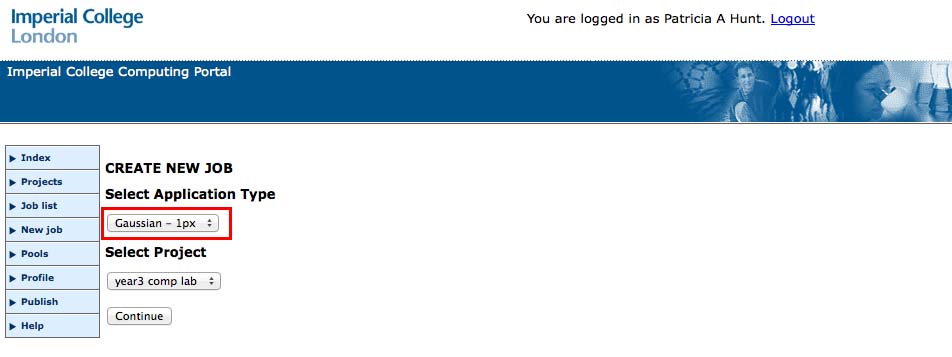
under "select application type" click on the "Amber PMEMD" button and select Gaussian 1px. Then press continue. Do not use the 4px or 8px queues, they are for much larger jobs than yours! If you are tempted by the larger queues don't be, the amount of time to set up the parallel run will excede the runtime on your job, and it will take longer to run!
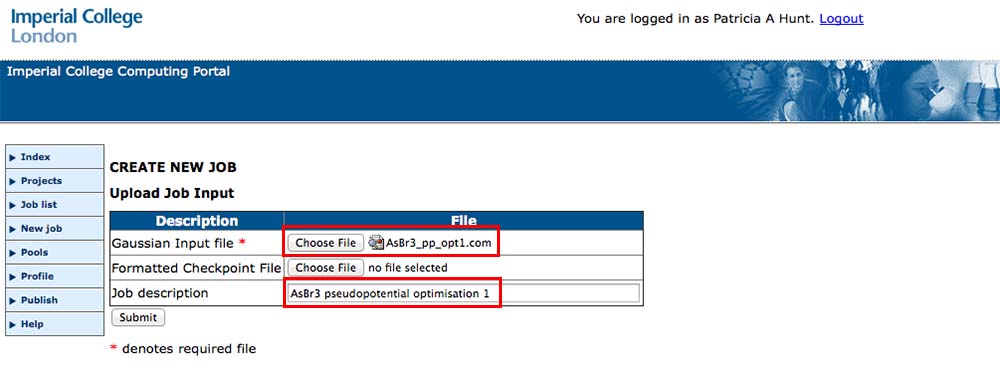
browse your drive to find your saved input file select it and then add a job description (this is important because if you submit a number of jobs you want to know what each one is!). Then click submit.
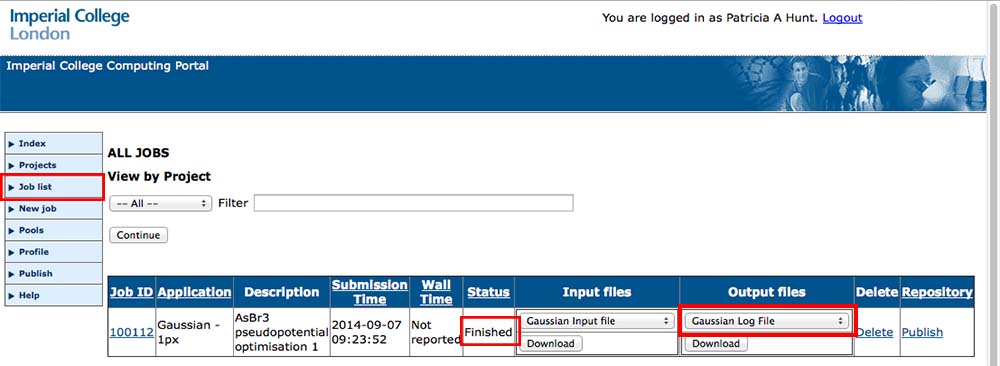
Now click on the "Job List" tab to see if your job is still in the queue or if it has gone in and run and is now finished. My job below has finished:
important A job has to get over several hurdles, it has to actually start. If it started successfully then it can run on the servers but be terminated internally (inside gaussian) due to a problem. Or it can run successfully and also complete successfully (the ideal option!). What you do depends on the situation:
check to see if your job has got started, if the time is very short then it may not have even started due to an error in your input file. If this is the case find out what is wrong with your input file.
download your *.log file the file may have a new name assigned by the scan server, open the file to check the job
check to see if your job has terminated internally, look inside the *.log file, there may be an error or problem and gaussian has terminated the job. Optimisations can and often do run out of steps and so although the job is complete as far as the queuing program is concerned, full convergence is not achieved within "one run" and the job needs to be restarted. "Restart" means taking the last step from a partially optimised system and using this as the input to continue with the optimisation. If you are unsure ask a demonstrator!
if your job is good, save it to your lab directory with an appropriate name. Don't leave the scan server name, as you will loose track of what each job is about if you don't rename them. It is only worth renaming the successful jobs for use later
Then you can procede to open the file in gaussview and continue with your checks and analysis.